Source: Lucas Gouveia/Android Police | N Universe/Shutterstock
 By
Dhruv Bhutani
Published 32 minutes ago
By
Dhruv Bhutani
Published 32 minutes ago
Dhruv Bhutani has been writing about consumer technology since 2008, offering deep insights into the Android smartphone landscape through features and opinion pieces. He joined Android Police in 2023, where he focuses on helping readers make informed buying decisions, as well as covering topics like productivity, networking, self-hosting, and more. Over the years, his work has also appeared in leading publications such as Android Authority, XDA Developers, CNET, PCMag, and more. Outside of his professional work, Dhruv is an avid fan of horror media spanning films and literature, enjoys fitness activities, collects vinyl records, and plays the guitar.
Sign in to your Android Police account Summary Generate a summary of this story follow Follow followed Followed Like Like Thread Log in Here is a fact-based summary of the story contents: Try something different: Show me the facts Explain it like I’m 5 Give me a lighthearted recapFor as long as I've used Google Calendar, it's been the backbone of how I plan my day and week. It's the app I open when I start my day and the last app I use before going to bed to time block my next day.
It helps me block everything from my work hours to my errands. I use it to track habits and manage all my various deadlines.
The way I use the app has transformed multiple times over the years, but so has the app, and most of those changes have genuinely improved my routine.
These quiet upgrades don't necessarily make headlines, but active users certainly notice them, and they've all played a role in helping me make my schedule easier to manage.
I'd go as far as saying that they've reshaped how I use Google Calendar. Of all the things I've changed, these four upgrades have had the most impact.
 I used my Google Calendar to structure my day for a week — here's how it changed my routines
Surprisingly, I was able to stay mostly on top of my summer chores
Posts 3 By Faith Leroux Jul 19, 2025Using secondary time zones to plan smarter across regions
Using dual time zones removes guesswork from scheduling
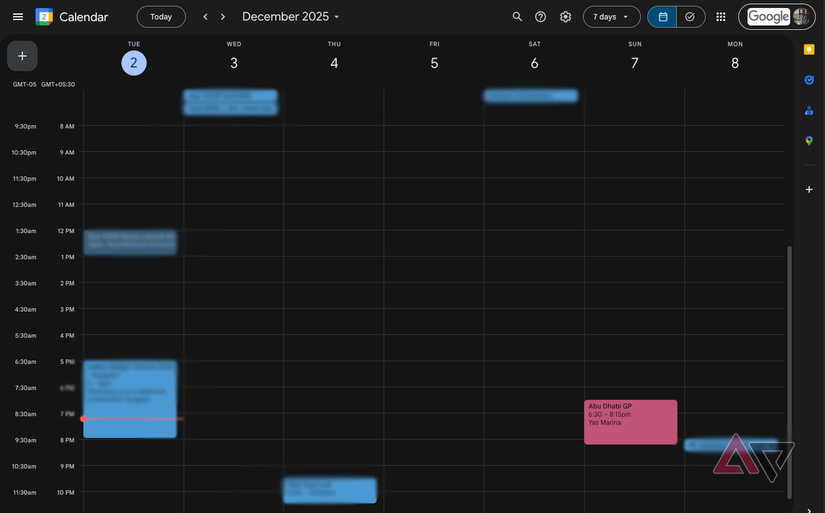
I work with teams across different regions, so scheduling meetings and even quick catch-ups can mean a lot of manual conversations.
I'd usually check world clocks, write offsets in notes, and hope I was calculating time zones accurately. Google Calendar has a lesser-known feature that solved this for me.
You can add a secondary time zone that appears alongside your primary one in the calendar grid. It runs down the side of the day view, so you can always see two timelines at the same time.
This changes how you plan things when working across time zones. Instead of guessing or converting in your head, you can start seeing it right there.
You know exactly when your working hours overlap with someone else's. This has a tangible impact on things, as you stop setting up meetings or calls at unreasonable hours for the other person.
It's simple enough, but it shapes your daily decision-making in multiple ways because it gives you a visual indication of time in different regions.
This is especially powerful when your schedule involves a lot of asynchronous communication.
Turning tasks into time blocks instead of treating them as to-dos
How blocking time for tasks stops over-committing and missed deadlines
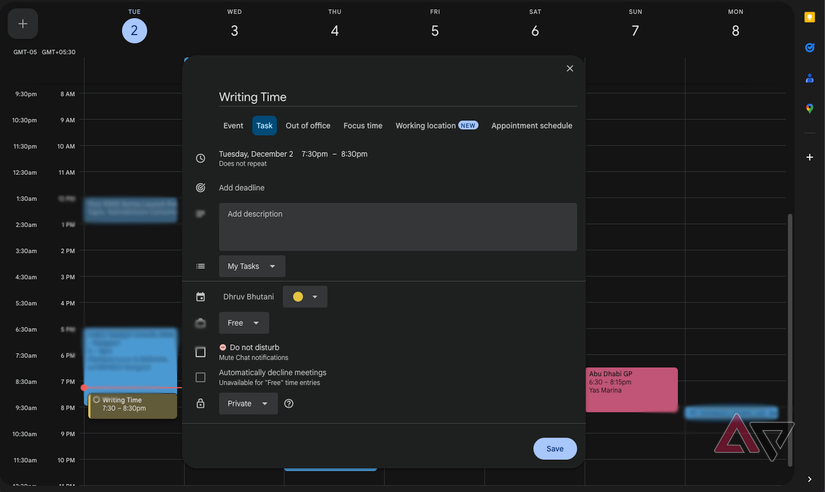
Google Tasks isn't new, but the way it integrates with Google Calendar has changed how I manage my workload.
Most people treat tasks as floating reminders that are meant to be tackled at an ambiguous, yet to be decided during the day. The problem is that having them floating around means that all too often, work doesn't get done.
Calendar events are the opposite of that. They show you exactly how packed your day already is.
I've started using task time blocking, which is already available in Google Calendar. Instead of creating a task and leaving it in a list, I assign a focus time block to it.
This makes the task appear as a filled-up rectangle in the calendar view. It has a start time and an end time just like a meeting.
The result is more accurate planning. When tasks sit inside the schedule, you can immediately visually see what tasks need to be wrapped up by what time.
This also allows you to adjust your work expectations better. For example, I leave an additional fifteen minutes per task just because delays can happen. This also helps me solve the problem of taking on too much and missing deadlines.
The best part of the integration is that tasks continue to be flexible. You can drag them around as you want.
If a meeting runs too long, you can slide the task down. And if you finish something earlier, you can just pull it to an earlier slot.
It gives you a more realistic idea of the tasks at hand, the time left in your workday, and how to optimally wrap up everything before the workday ends.
Using appointment scheduling to cut back on coordination
A simple scheduling tool that lowers cognitive load and keeps your week organized

One of the most overlooked features in Google Calendar is appointment scheduling. It is not quite the same as having an open-ended window to block your calendar.
Instead, you create a time block of availability, and Google Calendar generates a booking page that others can use to pick a slot.
After they pick a time, the event instantly shows up in your calendar, and the slot closes. No back-and-forth needed, nor is there any need for guessing.
I've started using the feature for setting up all my one-to-one calls, and it has changed the amount of time I spend coordinating.
Whether it is a quick catch-up or a consultation, or just a planning session, the link does the work for me. I only have to set the rules once.
I can define the duration and set time limits, and that's all it takes. When done, I don't need to do anything else. Google Calendar does the heavy lifting for me.
This feature is particularly useful for someone who likes working with people across time zones.
The person booking a slot sees it in their own local time, which cuts out conversion issues. It also keeps my personal schedule aligned because it respects my existing calendar entries. If I already have something booked, the scheduling tool simply won't show that slot.
It's been a big help toward reducing cognitive load as the scheduler keeps track of pending calls and the logistics of them.
I only think about the meeting once it is in my calendar, and that mental separation has gone a long way toward helping me wrestle back control of my time.
Using color-coded calendars for better organization
A color system that reveals patterns in how you actually work
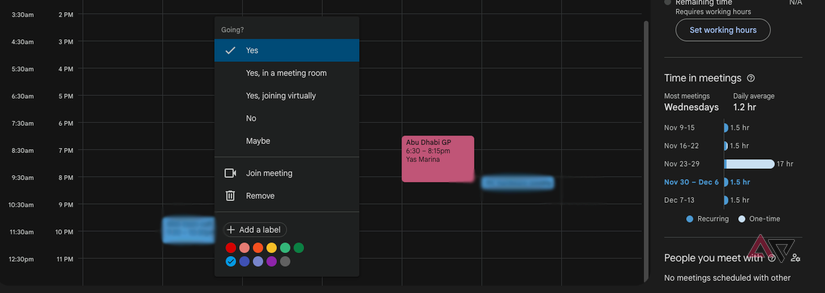
Most people use colors in Google Calendar to separate categories like work, personal, or family. And that's a fair use case. That's how I initially used it. But I've now started using colors to better label the kind of work I need to do.
For example, deep work requiring a lot of concentration gets a specific color, while collaborative tasks get another. So do errands, or travel. This has helped me track patterns in how I actually work and optimize my day better.
I find myself more energetic in the latter half of the day, so I've now scheduled tasks more aligned with slow mornings in the first half of the day.
Moreover, it gives me glanceability. So if a day is looking full of deep red, hard focus time blocks, I'll avoid scheduling calls altogether.
Lesser-known Google Calendar features that actually improve your time management
Google Calendar is a great calendar app, no doubt. But hidden in plain sight are features that can dramatically improve how you manage your time when you get used to them.
Adding something as basic as a secondary time zone brings clarity to cross-regional scheduling. Turning tasks into time blocks gives you a much more realistic view of your personal workload.
Similarly, appointment scheduling cuts back on coordination messages so you can focus more on the work itself. And finally, following a color-coding schema based on the task at hand helps you discover patterns across your week and optimize how you work even more.
None of these features are advertised a lot, but they conveniently change your user habits. Moreover, after you start using them, it's hard to go back as they help you make better decisions while planning your day.
 Google Calendar
Google LLC
PRODUCTIVITY
Price: Free
4.6
Download
Google Calendar
Google LLC
PRODUCTIVITY
Price: Free
4.6
Download
-
 Applications
-
 Google Calendar
We want to hear from you! Share your opinions in the thread below and remember to keep it respectful.
Be the first to post Images Attachment(s) Please respect our community guidelines. No links, inappropriate language, or spam.Your comment has not been saved
Send confirmation emailThis thread is open for discussion.
Be the first to post your thoughts.
- Terms
- Privacy
- Feedback
 4 days ago
Tag Heuer Connected Calibre E5 smartwatch is luxury at a price that'll make you wince
 2 days ago
OneUI 8.5 code says the Galaxy S26 will get a big wireless charging upgrade
 4 days ago
I finally solved notification fatigue with this one Pixel feature
 3 days ago
The Pixel 10 is an insane deal right now. [Video]
Trending Now Your Android phone's document scanner is gearing up for a visual overhaul
 I bought the Pixel 10 Pro, and I regret not getting the XL
 Study shows smartphones for kids under 13 could carry health risks